Data guide
Connect via official APIs — or export CSVs manually if you prefer
Option A — Sync from API (recommended)
NextReport syncs with Meta's Marketing API, Google's Ads API, TikTok's Marketing API, and GA4's Data API. Connect once in Account Settings and pull data directly — no manual CSV export.
Meta Marketing API
Connect Meta Ads
Account Settings → Meta Ads → Connect. Read-only access — we never change your campaigns.
Available on this site.
Google Ads API
Connect Google Ads
Same pattern as Meta — OAuth in Account Settings, then pick account and dates in the report wizard.
Available on this site.
TikTok Marketing API
Connect TikTok Ads
Read-only USD reporting for US and global accounts. Same 5-step wizard as Meta after you connect.
Add TIKTOK_APP_ID and TIKTOK_APP_SECRET on Vercel.
GA4 website reports are available from Step 1 of the report wizard — choose Google Analytics. Connect in Account Settings and link a property to each client first.
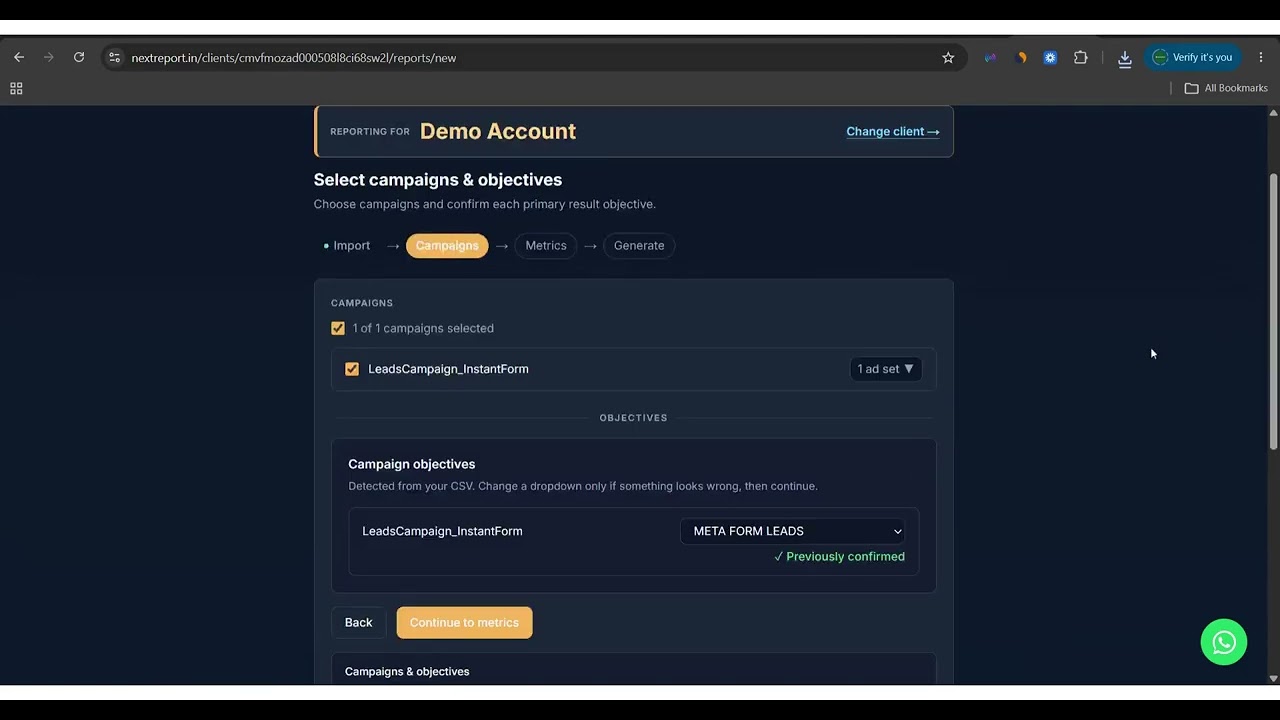
In the ad report wizard, choose Sync from API on Step 1 after connecting. CSV upload always works as a fallback.
Option B — Upload CSV manually
Two files power a full Meta weekly report: your main Last 30 Days CSV (every report) and an optional Previous Month CSV(once per month) for the previous-month row on the Monthly Overview slide — not a month-over-month comparison, just last month's totals alongside this month's MTD.
Main CSV — Last 30 Days (Meta)
Open Meta Ads Manager → Campaigns
Reports → Export → Export Table Data
Date range: Last 30 Days
On the 1st of the month, use Previous Month instead — see the callout below.
Time Breakdown: Day
Required — one row per day.
Columns to include
Campaign name, Day, Result type, Results, Amount spent, Cost per result, Reach, Impressions, CTR (all), CPC (link click), Frequency, Link clicks, Landing page views, Cost per landing page view.
Lead gen campaigns — also include
Website leads, On-Facebook leads, Cost per lead.
Export as CSV
Which date range on the 1st?
- 1st of the month (client timezone): export Previous Monthwith Day breakdown for the main CSV — one file for last week's slides and last month's row. Do not use Last 30 Days on the 1st (it skips the 1st of the prior month).
- All other days: Last 30 Days with Day breakdown — weekly slides, custom ranges, MTD table row, and the visual chart (last 30 days ending yesterday) all come from this file.
MTD in the Combined Total table uses calendar month day 1 through yesterday. Today is never included.
Multi-Month Historical reports
When a client asks for the last few months (e.g. May through August), choose Multi-Month Historical Report in Step 5 — not a Monthly report and not four separate uploads. Export one daily CSV whose date range covers every complete month you need (Custom date range in Ads Manager, Day breakdown).
- Each month gets campaign slides with a month header (e.g. "May Performance"), then a month total slide.
- The deck ends with a comparison table — one row per month.
- Campaigns under $10 spend in a month are excluded (same as other report types).
Monthly vs Multi-Month Historical
- Monthly — one current or recent month deck with an MTD chart and optional previous-month row on the overview slide.
- Multi-Month Historical — several complete past months in one deck, with per-month totals and a final comparison table.
Optional — Previous Month CSV (Meta)
Upload once per client at the start of each month. Adds the previous month row on the Monthly Overview slide (e.g. Aug 1 - 31). If the campaign started mid-month, the row shows the actual span (e.g. Aug 22 - 31). Day or monthly-totals exports both work.
Same export flow — set date range to Last Month
Time Breakdown
Day is recommended. Monthly totals (no day breakdown) also work for the previous month row.
Same columns as the Last 30 Days export
Export as CSV
Upload once per client in the wizard or on the client page.
Creative reports — Ad-level CSV (Meta)
Only for dedicated Creative reports. If your main CSV includes Ad name, creative slides can be added to any report type automatically.
Meta Ads Manager → Ads tab
Not Campaigns or Ad Sets.
Last 30 days (or at least 14 days)
Time Breakdown: Day
Columns
Campaign name, Ad set name, Ad name, Day, Amount spent, Results, Cost per result, Reach, Impressions, CTR, Frequency, Link clicks.
Video ads — also include
3-second video plays, ThruPlays.
Export as CSV
Powers Creative reports and optional creative slides in any report.
Google Ads — CSV export
Google uses a simplified 2-step wizard — every campaign in your CSV is included with month-to-date totals. No campaign picker. API sync uses the same metrics once your Google Ads account is connected.
Google Ads → Reports → Predefined → Basic → Campaign
Segment → Day
Date range: Last 30 days
Columns
Campaign, Day, Cost, Impressions, Clicks, CTR, Avg. CPC, Conversions, Cost per conversion, Conv. rate, Conv. value.
Download CSV
TikTok Ads — CSV export
TikTok uses the same 5-step wizard as Meta. Ad groups map to ad-set slides in your deck.
TikTok Ads Manager → Campaign / Ad group report
Date range: Last 30 days
Breakdown: Day
Required — one row per day.
Columns
Campaign name, Ad group name, Day, Cost, Impressions, Clicks, CTR, CPC, Conversions, Cost per conversion.
Download CSV
Same 5-step wizard as Meta — ad groups appear as ad-set slides.
Ready to generate your first report?
See the full workflow on the Getting Started page.