
Meta Ads reporting for agencies
How NextReport works
One-time client setup, then a branded Meta deck in under 2 minutes — pick a report type and upload a day-wise CSV from Ads Manager Reporting.
Full walkthrough (video)
Meta Ads Reporting → day-wise CSV export → upload and run the four-step NextReport wizard through generate and share.
NextReport Workflow Demo
Meta export
- Ads Reporting → Create report
- Last 30 days · Breakdown: Day
- Metrics for your objectives · Save view · Export CSV
NextReport
- Client → Generate report
- Import CSV · Analyze
- Campaigns · Objectives · Metrics → Generate
- Preview · Download · Share
Wizard flow preview
Quick animated mock — auto-advances; use the dots to jump between steps.
Add your ad data
Upload a CSV export from Meta Ads Manager.
Want a live walkthrough with your accounts? Book a demo
Before your first report
Two one-time steps — then every report reuses the same client and branding.
- 1
Create your free trial account
Sign up in under a minute — no credit card. You get 7 days to run the full Meta report wizard.
- 2
Add a client workspace
From My Clients, set the client name, currency, timezone, and logo. Every slide uses that branding automatically.
Getting data in (Meta CSV)
On Import, choose your report type first. Each type needs a specific date range with day-wise breakdown from Meta Ads Reporting — not the Campaigns screen export. Hover a report-type card in the wizard for the exact CSV range.
Step-by-step export: CSV Export Guide →
Optional: Previous Month CSV (weekly decks)
For weekly reports, attach a second file with the last full calendar month (day-wise). It powers the previous-month row on the Monthly Overview slide — not a month-over-month comparison deck.
Report types in the wizard
Six Meta report types — names and slide layouts match what you select on Import.
Weekly Performance Report
Last week (7-days), MTD (month till date), last 30-day chart, optional previous month row.
Monthly Performance Report
Month-to-date campaign slides and chart — one combined total row (no last-week slide).
Yesterday Performance Report
Full campaign deck for a single day only (yesterday) — not a day-by-day table.
Comparison Report
Period A vs Period B per campaign + summary table.
Multi-Month Historical Report
Past months: campaigns per month, month totals, then a multi-month overview table.
Day-by-Day Table Report
Account totals only - one row per day in a table.
The 4 wizard steps
Same order and labels as the app.
Import
Wizard step: Import
Choose the report type, export the matching day-wise CSV from Meta Ads Reporting, and upload it. Optional Previous Month CSV adds the prior-month row on weekly decks.
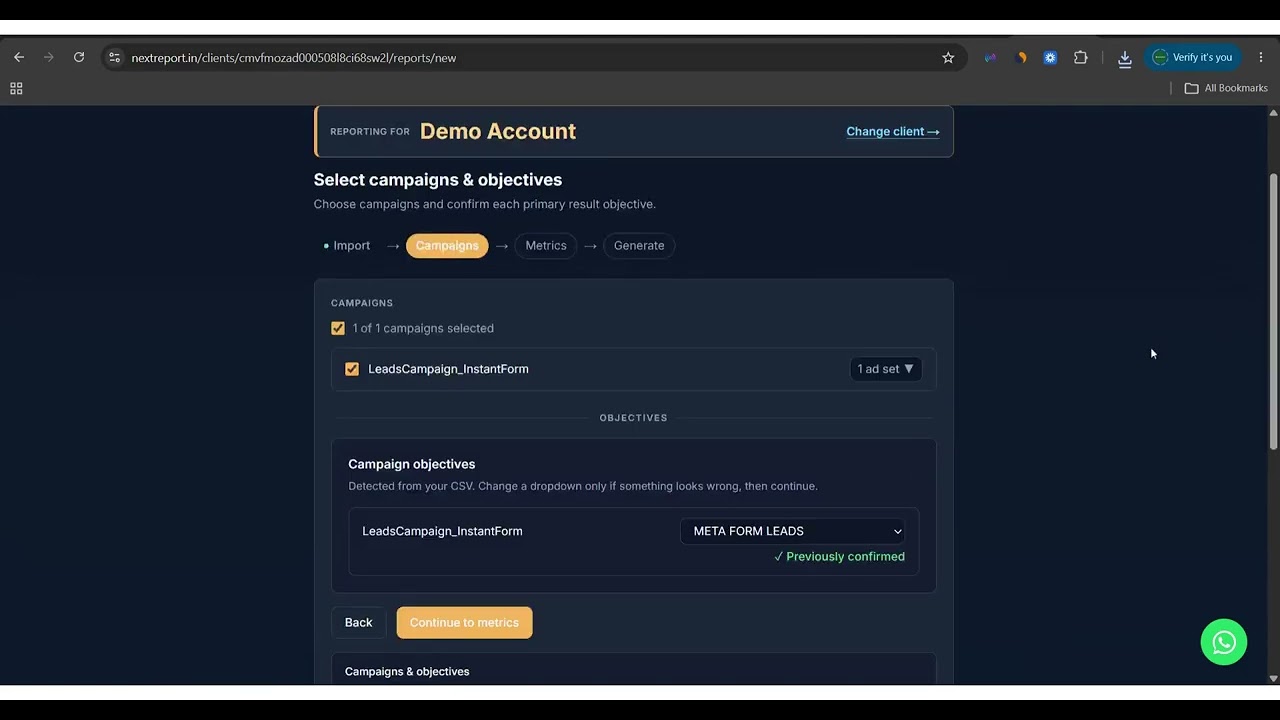
Campaigns & objectives
Wizard step: Campaigns
Select campaigns for this deck and confirm each campaign’s primary result objective (leads, purchases, traffic, reach, and more).
Review metrics
Wizard step: Metrics
Preview KPI chips on each campaign slide. Remove metrics you do not need or add extras from columns in your export.
Generate report
Wizard step: Generate
Confirm dates and report type, then generate. Download .pptx (PowerPoint or Google Slides), share a live link, save to Google Drive, or send via WhatsApp or email.
What you get after Generate
Download as PowerPoint (.pptx)
The format clients expect — your branding and AI-written insights on every slide.
Share a live browser link
Clients open the report on any device. No PowerPoint install required.
Save to Google Drive
Upload the deck to your folder and share from Drive.
Share via WhatsApp or Email
One click from the generate screen after the deck is ready.
Try NextReport now.
Start a free 7-day trial — or book a demo if you want us to walk through your Meta workflow first.